API Key
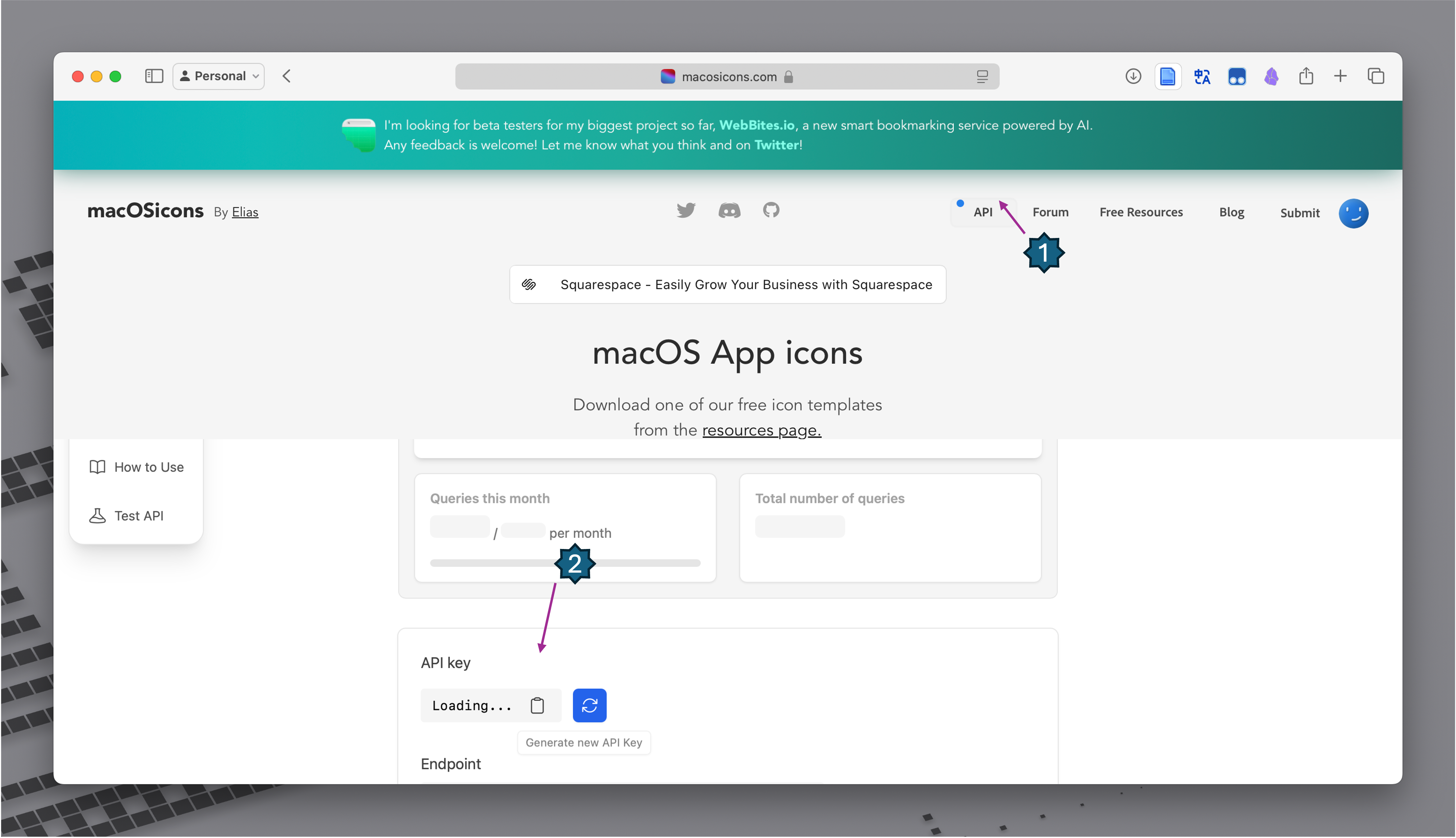
An API key from macosicons.com is required to search for icons online. Without it, you can still use local image files.
Getting an API Key
- Visit macosicons.com and create an account.
- Request an API key from your account settings.
- Copy the key.
Entering the Key
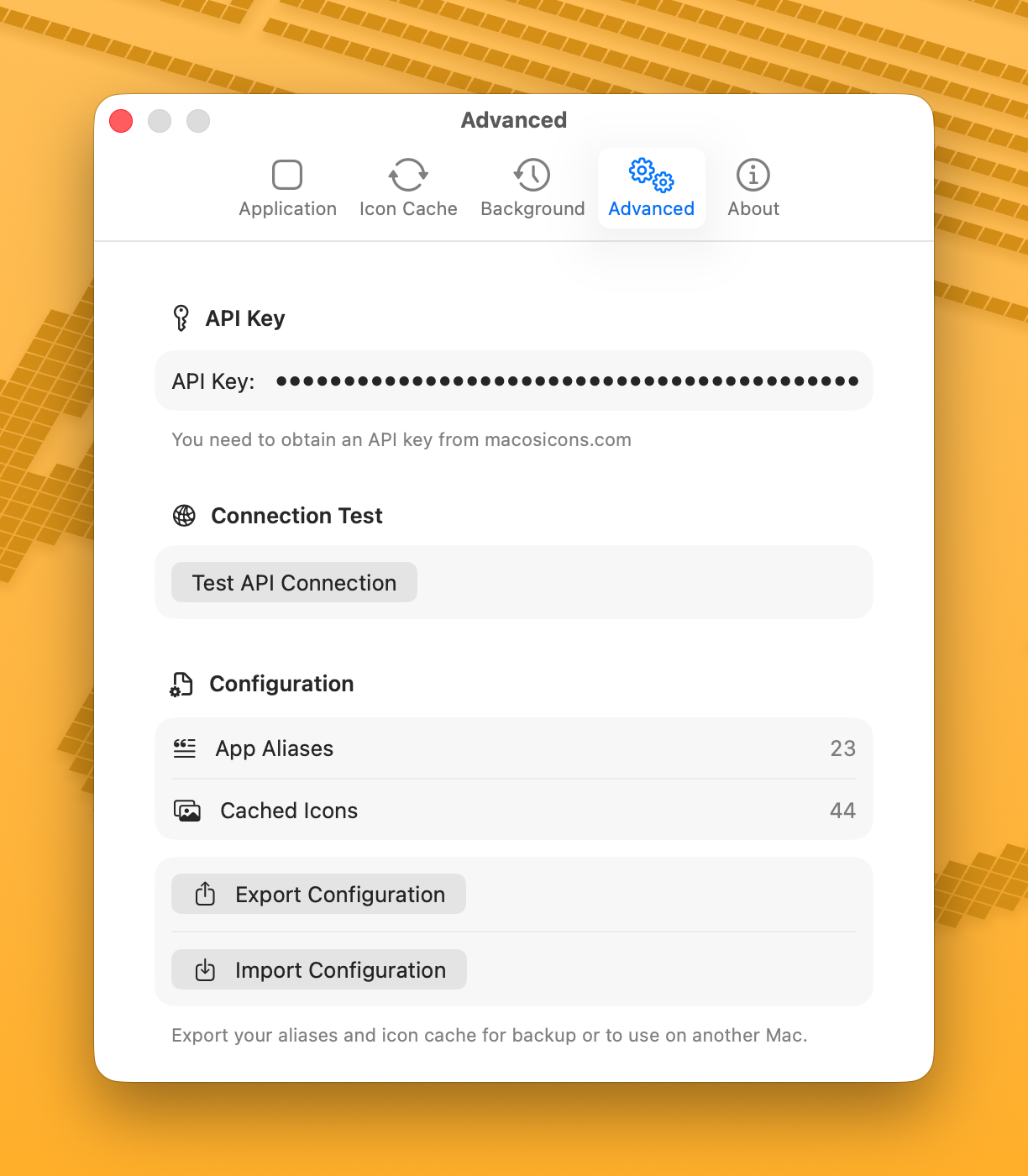
- Open IconChanger.
- Go to Settings > Advanced.
- Paste your API key in the API Key field.
- Click Test Connection to verify it works.
Using Without an API Key
You can still change app icons without an API key by:
- Using local image files (click Choose from the Local or drag & drop an image)
- Using icons bundled within the app itself (shown in the "Local" section)
Advanced API Settings
In Settings > Advanced > API Settings, you can fine-tune the API behavior:
| Setting | Default | Description |
|---|---|---|
| Retry Count | 0 (no retry) | How many times to retry a failed request (0–3) |
| Timeout | 15 seconds | Timeout for each individual request attempt |
| Monthly Limit | 50 | Maximum API queries per month |
The Monthly Usage counter shows your current usage. It resets automatically on the 1st of each month, or you can reset it manually.
Icon Search Cache
Toggle Cache API Results to save search results to disk. Cached results persist across app restarts, reducing API usage. Use the refresh button when browsing icons to fetch fresh results.
Troubleshooting
If the API test fails:
- Check that your key is correct (no extra spaces)
- Verify your internet connection
- The macosicons.com API may be temporarily unavailable