
App Aliases
Some apps have names that don't match well with icon search queries. For example, "Adobe Photoshop 2024" might not return good results, but "Photoshop" would. Aliases solve this by mapping an alternative search name to an app.
Setting an Alias
- Right-click an app in the sidebar.
- Select Set the Alias.
- Enter a search-friendly name (e.g.,
Photoshopinstead ofAdobe Photoshop 2024).
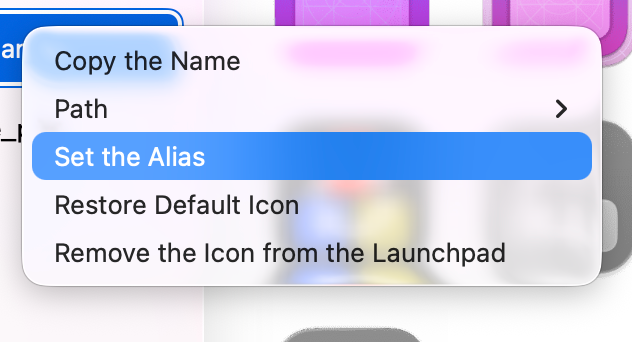
The app will now use the alias name when searching for icons on macOSicons.com.
Managing Aliases
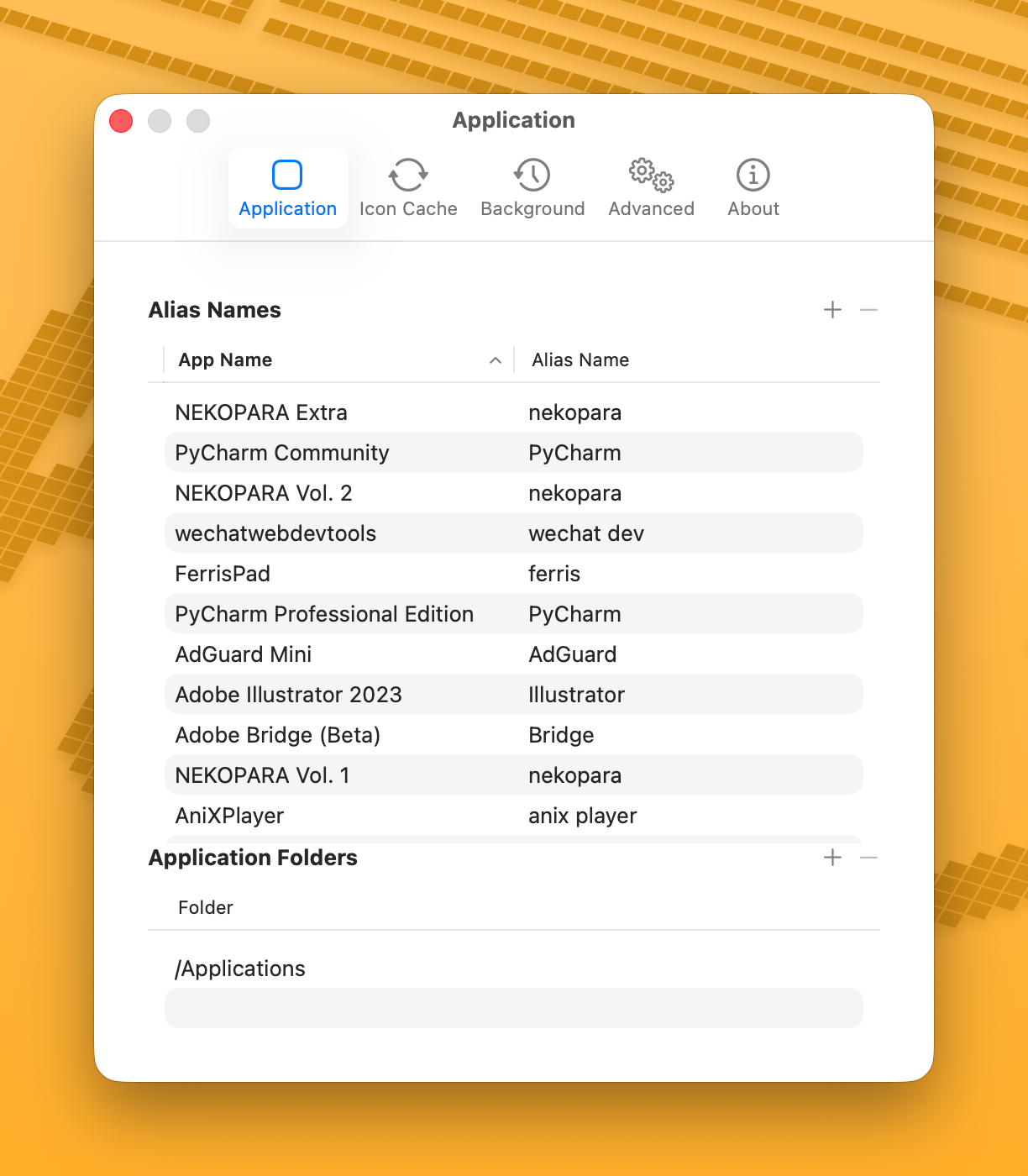
View and edit all aliases in Settings > Application > Alias Names.
Built-in Aliases
IconChanger includes some built-in aliases for common apps:
PyCharm Professional Edition→PyCharmDiscord PTB→Discord
Folder Aliases
Aliases also work for folders. Right-click a folder in the sidebar and select Set the Alias to map a search-friendly name. This is especially useful for folders with short or generic names (e.g., alias "go" to "folder" or "development").
Tips
- Keep alias names short and generic for better search results.
- Aliases are included when you export your configuration.